
Quick question: when did you last check your website’s security? If you’re staring at the ceiling thinking “hmm… never,” don’t worry. Most site owners only wake up to security after something goes wrong, like a strange redirect or a scary Google warning.
That’s a stressful way to learn. A much easier way is to use a WordPress website security audit checklist. You don’t need to be a coder or security expert. With a few simple checks, you can identify common security problems and fix them before they become bigger issues.
What Does a WordPress Security Audit Cover?
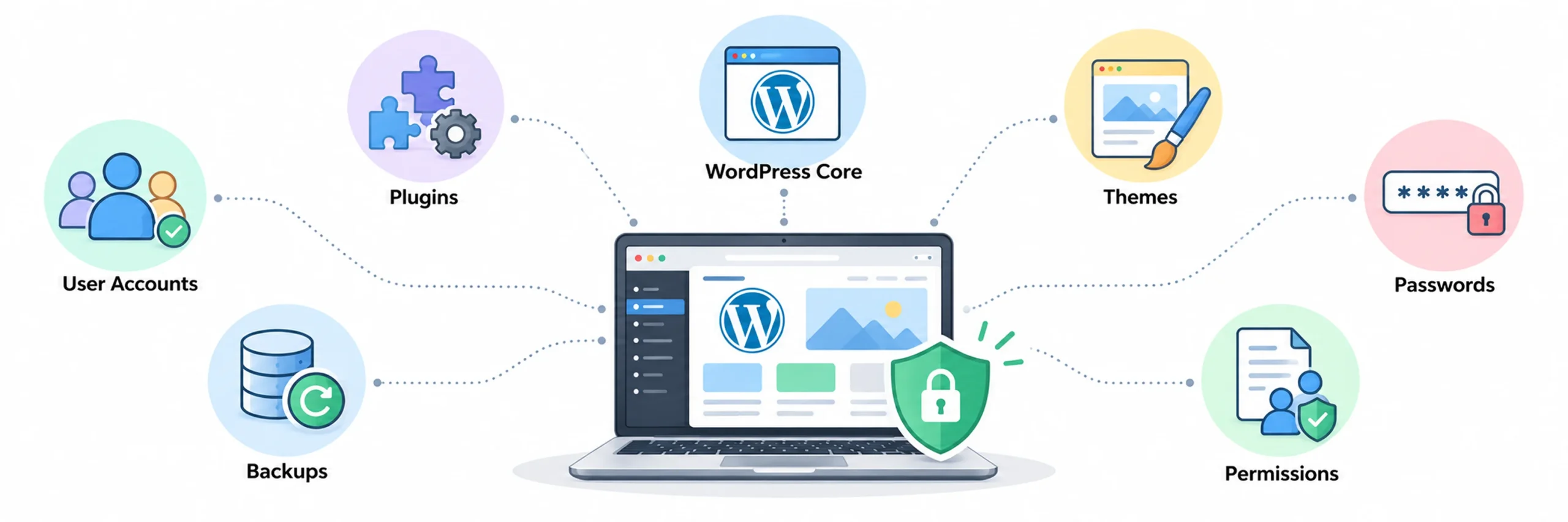
A WordPress security audit is a complete checkup of your website’s security posture, including your WordPress core, plugins, themes, user accounts, passwords, permissions, and backups.
The goal is to find weak spots before hackers can take advantage of them. Unlike a malware scan, which mainly looks for existing threats, a security audit evaluates how well your entire website environment is protected.
When Should You Audit Your WordPress Website?
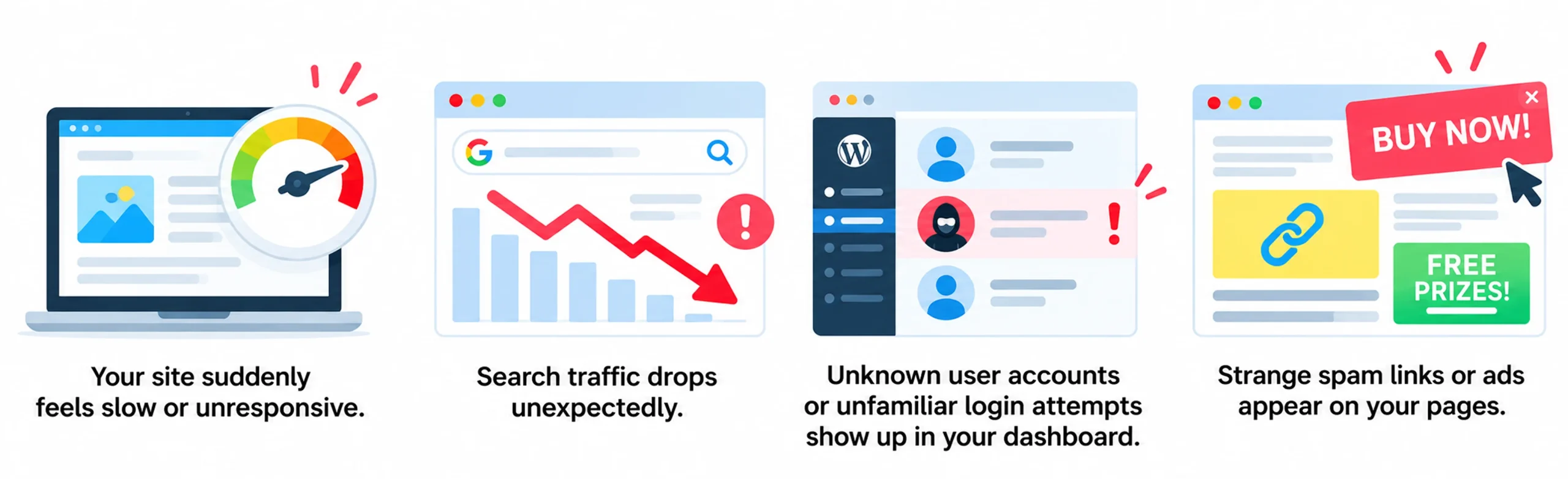
Running a security audit once every three months is a good routine. However, you should do a WordPress security audit right away if you spot any of these red flags:
- Your site suddenly feels slow or unresponsive.
- Search traffic drops unexpectedly (which can be a sign of your website being flagged by Google).
- Unknown user accounts or unfamiliar login attempts show up in your dashboard.
- Strange spam links or ads appear on your pages.
10 Essential WordPress Security Checks
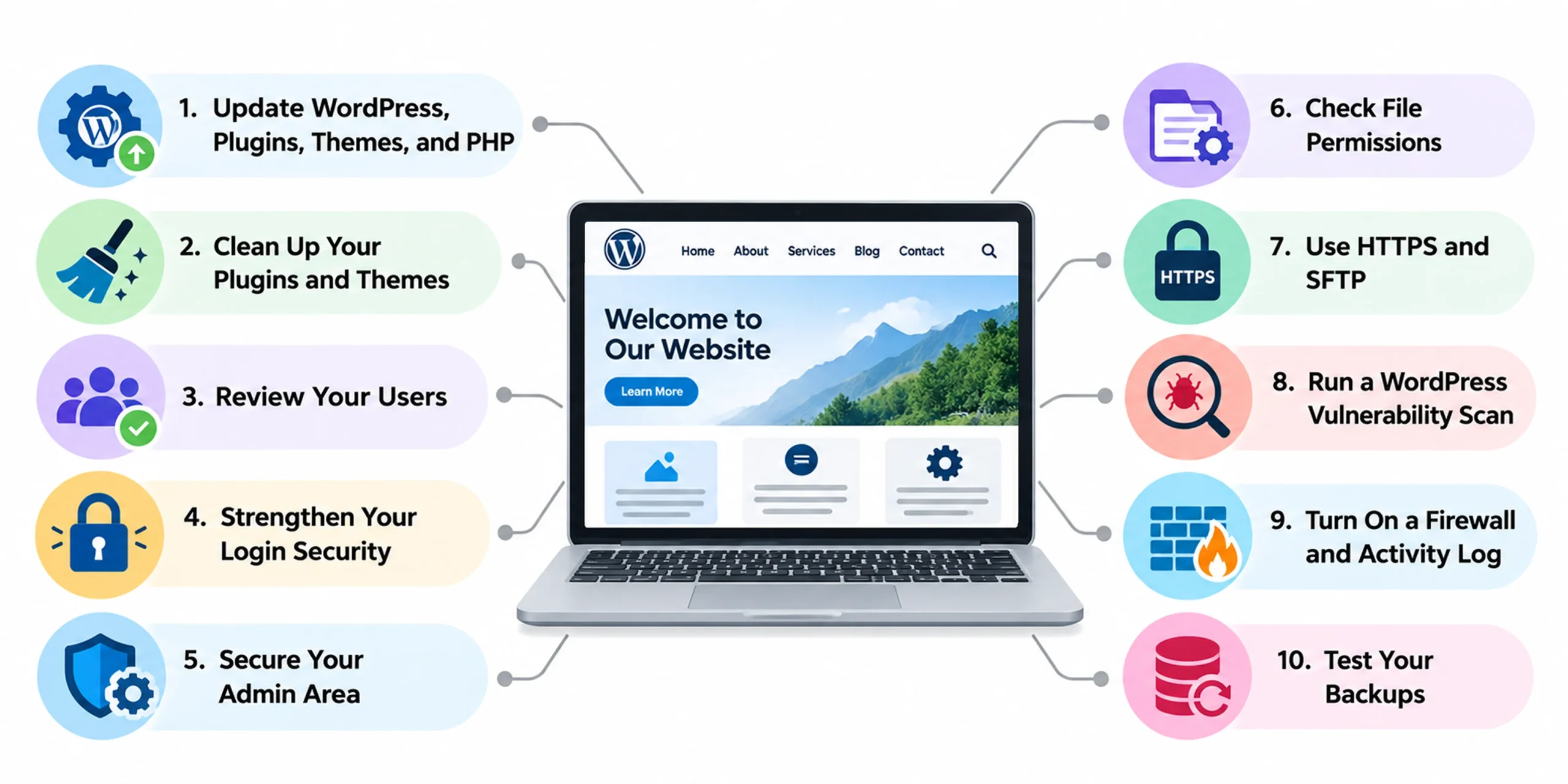
1. Update WordPress, Plugins, Themes, and PHP
Start with the basics. Go to Dashboard → Updates and install any available updates. New versions often fix security problems, so keeping your website updated can reduce common risks. Skipped updates are also one of the warning signs that your website is quietly falling behind.
Keeping WordPress, plugins, themes, and PHP updated is one of the simplest WordPress security best practices you can follow.
Also check with your hosting provider to see which PHP version your website uses. Older PHP versions may no longer receive security updates, which can leave your website at risk.
2. Clean Up Your Plugins and Themes
Old or unused plugins and themes can create security risks, especially if they are no longer maintained. Good WordPress plugin security starts with removing plugins you don’t need and keeping the ones you use updated. Take a few minutes to clean them up.
- Delete what you don’t use. Even deactivated plugins remain on your server and can become a security risk.
- Check the last update. If a plugin hasn’t been updated for a long time, consider replacing it.
- Use trusted sources. Download plugins and themes from reliable sources such as WordPress.org. Choosing themes from trusted sources is also an important part of WordPress theme security.
- Keep things simple. Only install what your website actually needs.
Regularly checking your plugins and themes can help you remove outdated or unnecessary software before it becomes a problem.
3. Review Your Users
Go to Users → All Users and check who has access to your website. If you don’t recognize an account, find out why it exists.
Pay close attention to WordPress user permissions. Each person should have only the access they need.
- Delete old accounts, including former employees, freelancers, and test users.
- Give users the lowest role they need. For example, a blog writer usually doesn’t need Administrator access.
- Keep “Anyone can register” turned off unless your website needs it.
Regular user reviews can help prevent unused or unnecessary accounts from becoming security risks.
4. Strengthen Your Login Security
Weak passwords can make it easier for attackers to get into your website. A few simple changes can make your login much safer:
- Use long, unique passwords.
- Turn on two-factor authentication (2FA).
- Limit login attempts to block repeated guesses.
- Use strong passwords for your hosting, FTP, and database accounts too.
These are simple but important parts of WordPress login security. Even a well-maintained website can be compromised if an account has a weak password.
You don’t need to change your login URL just for the sake of security. Strong passwords and 2FA are much more important.
5. Secure Your Admin Area
Your WordPress dashboard gives users access to important parts of your website, so it’s worth checking a few key settings.
- Disable file editing. You can add define( ‘DISALLOW_FILE_EDIT’, true ); to wp-config.php to prevent code changes from the dashboard.
- Protect your uploads folder. PHP files should not normally be stored there. If you find one, ask your developer or hosting provider to check it.
- Disable XML-RPC if you don’t need it. This can reduce certain types of unwanted login attempts.
These settings can add another layer of protection to your admin area. If you’re not comfortable editing files, ask your developer or hosting provider for help.
6. Check File Permissions
File permissions control who can read, edit, or run files on your server. Incorrect settings can give attackers more access than they should have.
A common setup is 755 for folders and 644 for files. The wp-config.php file may need tighter permissions, such as 600 or 640, depending on your hosting setup. Avoid using 777.
You should also check whether your server is exposing files that should stay private. If you’re unsure about your file permissions, ask your hosting provider before making changes.
7. Use HTTPS and SFTP
Make sure your website uses HTTPS and that your SSL certificate is still valid. Look for the padlock in your browser and check for any mixed-content warnings.
When you transfer files to your server, use SFTP instead of plain FTP. SFTP provides a safer way to transfer files and protect your login details.
These checks help protect both your website and the information sent between your server and visitors.
8. Run a WordPress Vulnerability Scan
A WordPress vulnerability scan can check your website for known malware, security issues, and vulnerable plugins or themes.
You can use a trusted security tool to scan your website. It’s also worth checking whether search engines or browsers have flagged your site for security problems.
Keep in mind that a clean scan doesn’t guarantee that your website is completely secure. It only means the scan didn’t find known problems. You still need to check users, passwords, settings, backups, and other areas of your site.
9. Turn On a Firewall and Activity Log
A firewall helps block suspicious traffic before it can cause problems. Depending on the setup, it can filter harmful requests before or after they reach your server.
An activity log works like a record of what happens on your website. It can show things such as logins, plugin changes, and other important actions.
Together, these tools can help block suspicious activity and help you notice unusual changes sooner.
10. Test Your Backups
Having a backup is important, but you also need to know that it actually works. A backup that cannot be restored won’t help much when something goes wrong.
Follow these simple habits:
- Back up your files and database regularly.
- Keep older copies so you can restore your site from before a problem occurred.
- Store at least one backup away from your website’s server.
- Test a backup on a staging or practice site to make sure it can be restored.
Testing your backups is an important final step. When a security problem happens, a working backup can help you get your website back online more quickly.
Quick WordPress Security Checklist
☐ Everything updated (WordPress, plugins, themes, PHP)
☐ Unused plugins and themes deleted
☐ Users reviewed and WordPress user permissions checked
☐ Strong passwords, 2FA, login limits on
☐ File editing and XML-RPC handled
☐ File permissions checked
☐ HTTPS and SFTP in use
☐ WordPress vulnerability scan done
☐ Firewall and activity log active
☐ Backup restored as a test
Use this WordPress security checklist each time you perform your audit so you don’t accidentally skip one of the basics.
What to Do If You Find a Security Problem
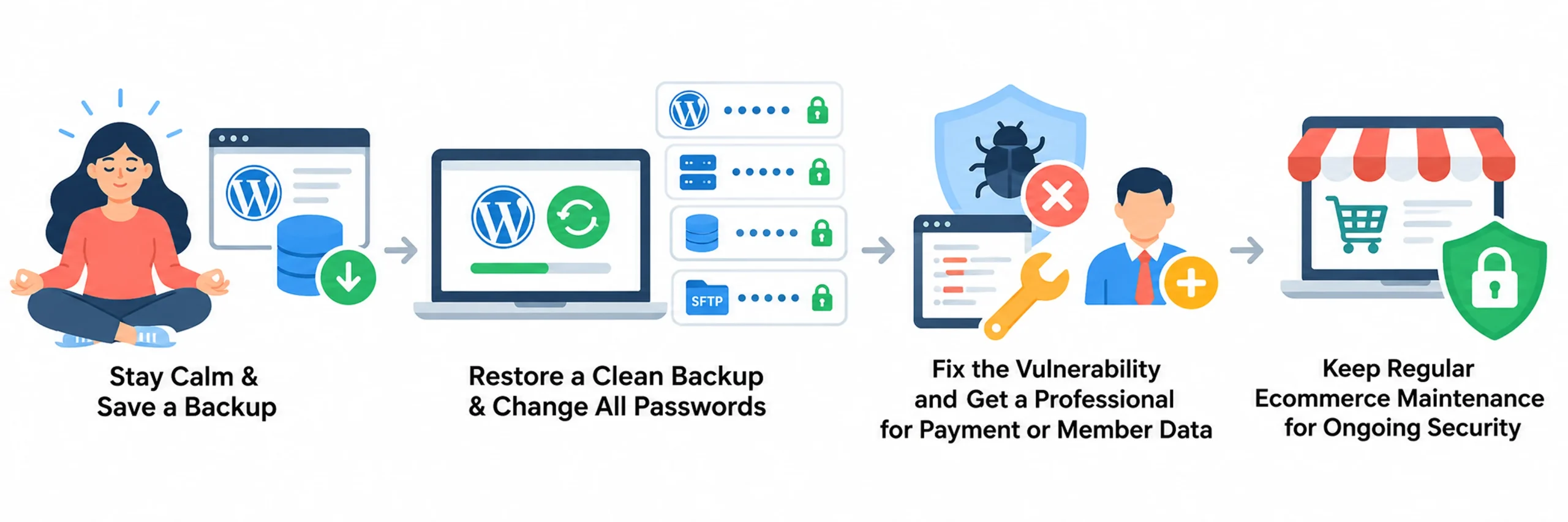
First, take a breath. Don’t start deleting files in a hurry. Save a copy of your site first, because you may need it later to find out what happened.
Then restore a clean backup, change every password (WordPress, hosting, database, and SFTP), and fix the vulnerability that allowed the hacker to get in. If your site handles payments or stores member data, bring in a professional.
This matters even more for online stores, where regular ecommerce website maintenance helps keep customer data safe. Plugins can’t see server-level problems or weak custom code.
This is why WordPress security testing should look beyond a single malware scan. A complete WordPress security audit needs to consider the whole website environment.
Keep Your WordPress Website Secure
A WordPress website security audit checklist isn’t a one-time task. Regular checks help you catch small security issues before they turn into bigger problems.
You don’t have to complete all ten checks at once. Start with the basics: keep your software updated, review your users, and strengthen your login security. Once you’ve covered those, work through the remaining checks and schedule your next audit so website security stays part of your regular website maintenance routine. Pair it with a technical SEO audit so both your security and your search visibility stay healthy. If you’d rather hand this work to experts, understanding WordPress website maintenance costs can help you plan your budget.
Following these WordPress security best practices consistently can help you identify weak spots early and keep your website better protected over time.
For professional support, JanBask Digital Design provides WordPress solutions focused on security and performance. If you’re building or improving a website, WordPress website design and development can provide a stronger foundation for long-term security.